
Arrows Lite manual
This is the complete reference for Arrows Lite: every screen, every button and every limit. If you only want to get started, the shorter step-by-step guide covers the same ground in ten minutes. Arrows Lite runs entirely inside your browser — no account, and no page content is collected.
Contents
- 1. What Arrows Lite does
- 2. Install and first launch
- 3. The Working Area
- 4. The right-click menu
- 5. MOVE — gathering tabs
- 6. SAVE — saving one tab
- 7. The AI page overview
- 8. Saved Cases in the Side Panel
- 9. Groups — saving the whole Working Area
- 10. Bookmarks in the Side Panel
- 11. Sticky Notes
- 12. Display language
- 13. Backup — export and import
- 14. Where your data lives
- 15. Limits at a glance
- 16. Troubleshooting
1. What Arrows Lite does
Arrows Lite is built around one idea: the work you have not finished should survive closing the browser. Instead of a bookmark folder you never open again, it keeps unfinished work in a place you can hand back to yourself tomorrow morning.
Everything in the extension belongs to one of five parts. The rest of this manual takes them one at a time.
| Part | What it is | Where you find it |
|---|---|---|
| Working Area | A stretch of tabs between two marker tabs. This is “what I am working on right now”. | The tab strip of each window |
| Saved Cases | Individual tabs you saved and closed, each with a name and an optional AI page overview. | Side Panel → ▣ SAVED CASES |
| Groups | The whole Working Area saved under one name, with one AI overview for the set. Reopen it in one click. | Side Panel → 📁 GROUPS |
| Bookmarks | Your existing Chrome bookmarks, with Arrows Lite actions attached to each one. | Side Panel → 🔖 BOOKMARKS |
| Sticky Notes | Up to five notes stuck onto a page, so the “where was I?” note lives on the page itself. | Right-click the tab → 📝 |
The shape of a normal day
- Morning Click the toolbar icon. The Side Panel opens and the Working Area is prepared in that window.
- During the day Right-click any tab → ▶ MOVE to pull it into the Working Area, so what matters is in one stretch of the tab strip.
- Before you stop Right-click a tab → ■ SAVE to save and close it with a name, or save the entire Working Area as one group.
- Next morning Open the Side Panel and press ↗ OPEN (one tab) or ↗ OPEN ALL (a whole group).
Nothing here needs an account, a sign-up or a subscription. The only feature that ever contacts a server is the optional AI page overview, and only when you press its button — see section 7.
2. Install and first launch
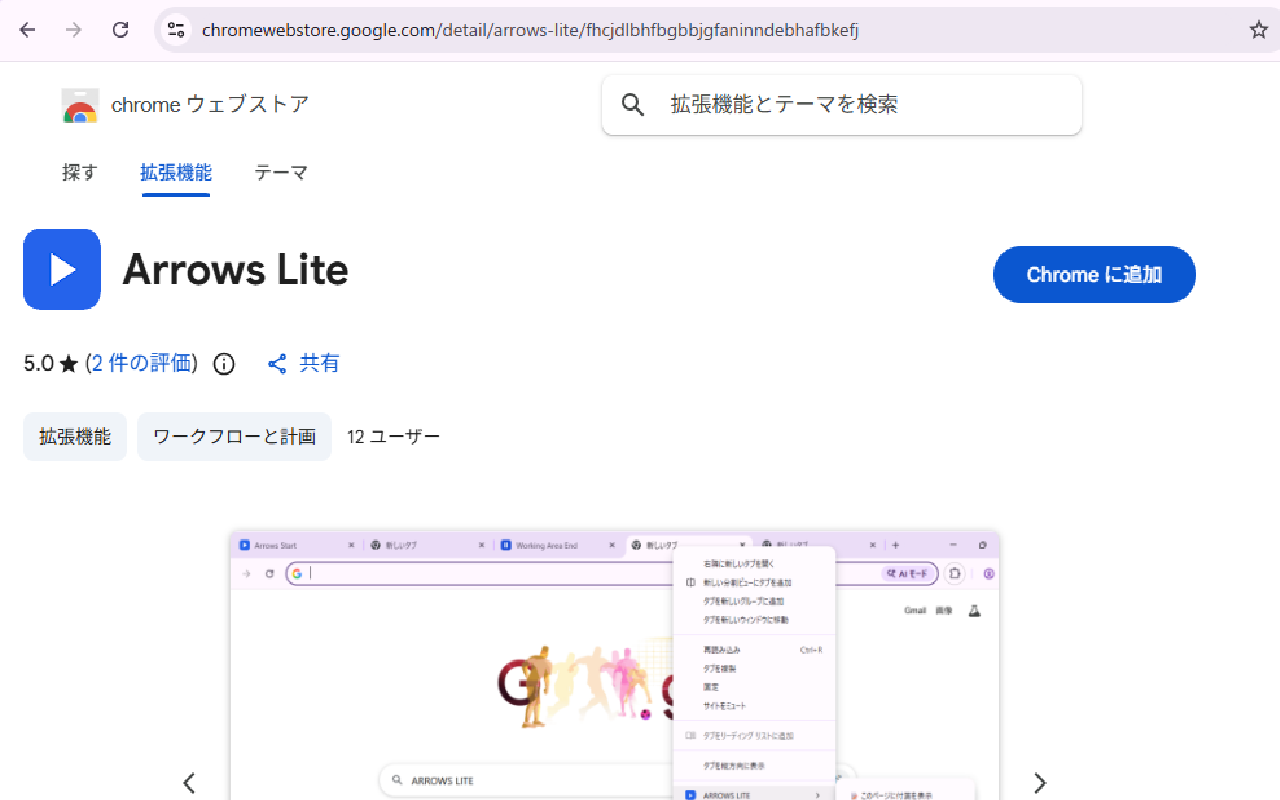
- 1. Add to Chrome Open the Chrome Web Store page for Arrows Lite and press Add to Chrome. It is free and asks for no account.
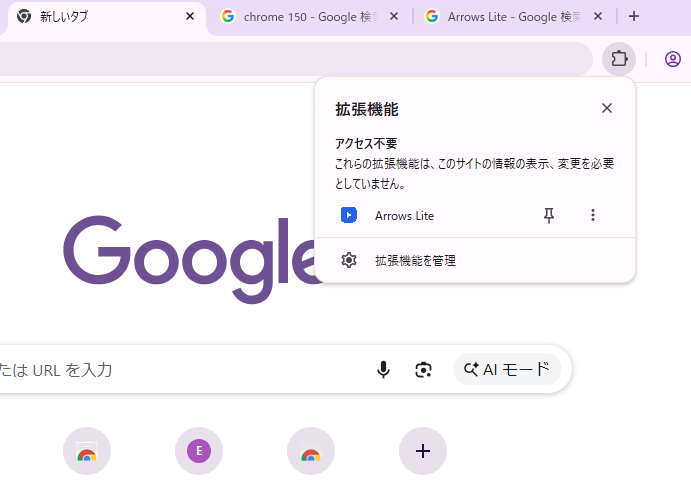
- 2. Pin the icon Click the puzzle-piece (Extensions) button in the toolbar and pin Arrows Lite. The icon is how you open the Side Panel and how you see the sticky-note badge, so keep it visible.
- 3. Click the icon once The Side Panel opens and the two Working Area markers are created in that window. Your current tab is not moved and nothing is closed.
Requirements
| Item | Requirement |
|---|---|
| Browser | Google Chrome 150 or later (Chrome’s Side Panel and the extension APIs it uses) |
| Account | Not required for any core feature |
| Network | Not required, except when you press the AI page overview button |
| Storage | Chrome’s local extension storage on your own device |
On an older Chrome, Arrows Lite shows a short page explaining that Chrome 150 or later is required, and its features stay switched off rather than half-working. Update Chrome and the extension starts behaving normally.
3. The Working Area
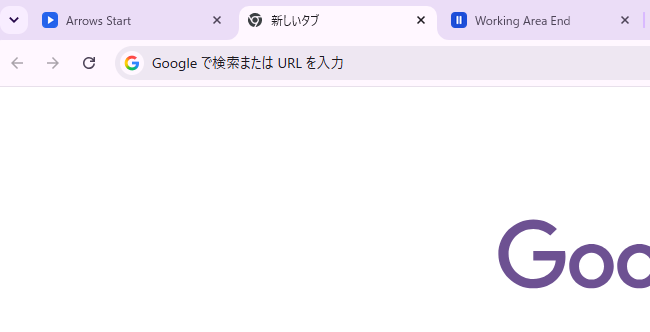
The Working Area is the heart of the extension. It is simply the run of tabs between two marker tabs, and it tells you at a glance where “today’s work” starts and ends.
| Marker | Appearance | Meaning |
|---|---|---|
| Arrows Start ▶ | A blue tab with a play triangle | The left edge. Your working area begins to the right of it. |
| Working Area End ‖ | A tab with two blue vertical bars | The right edge. Tabs you “move to the end” land just before it. |
How the area is created
- Clicking the toolbar icon prepares the markers quietly in that window if they are missing. Your active tab is not moved and the focus does not jump.
- Using MOVE when there is no area yet creates the markers first and then moves your tab into the new area.
- The Working Area is per window. Each window has its own pair of markers, and Arrows Lite never reaches into another window.
What is inside and what is outside
- Inside: ordinary tabs sitting between the two markers, in the order they appear on screen.
- Outside: everything to the left of Arrows Start, everything to the right of Working Area End, pinned tabs (they always live at the far left of the strip), and the marker tabs themselves.
- Pinned tabs are deliberately left alone by MOVE, SAVE, CLOSE and group saving — a pinned tab is something you keep, not something in progress.
If you close a marker
Nothing breaks. Closing Arrows Start removes the left edge; closing Working Area End removes the right edge. Your ordinary tabs are untouched. Click the toolbar icon (or use MOVE) and the missing marker is created again.
The markers are pages that belong to the extension, so they do not read anything and do not talk to the network. They exist purely as visual boundaries in the tab strip.
4. The right-click menu
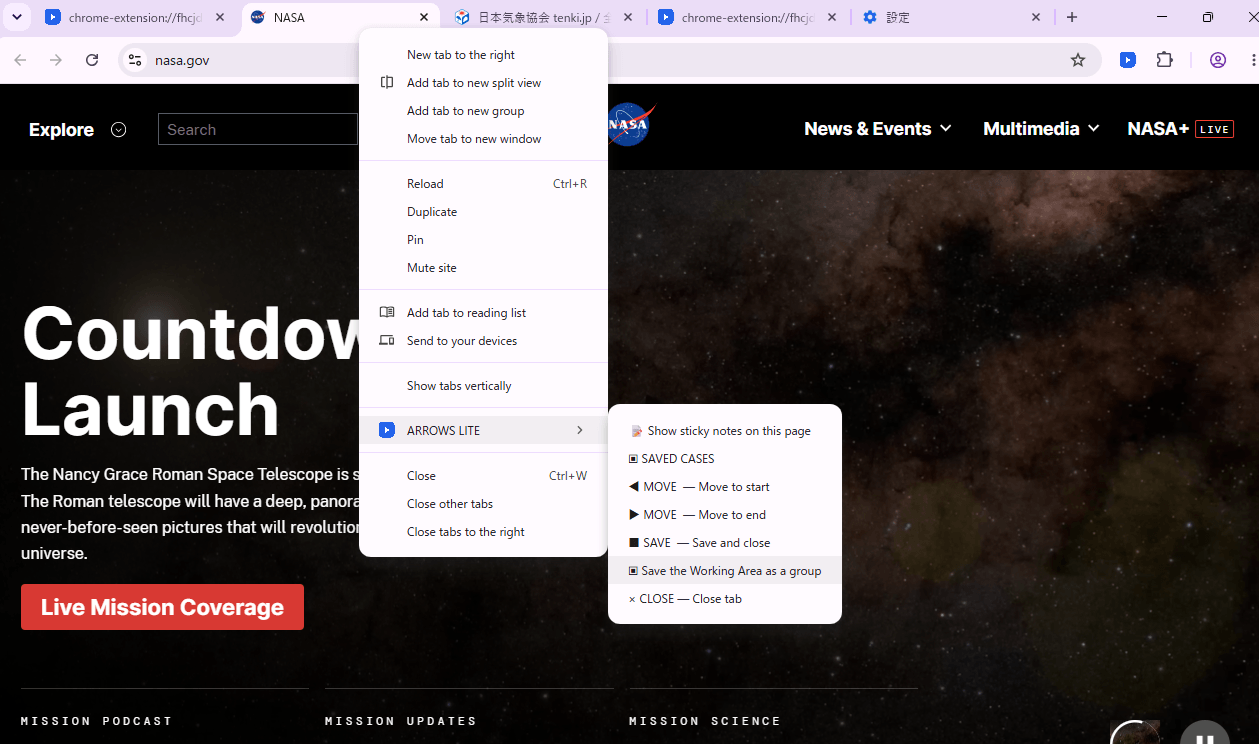
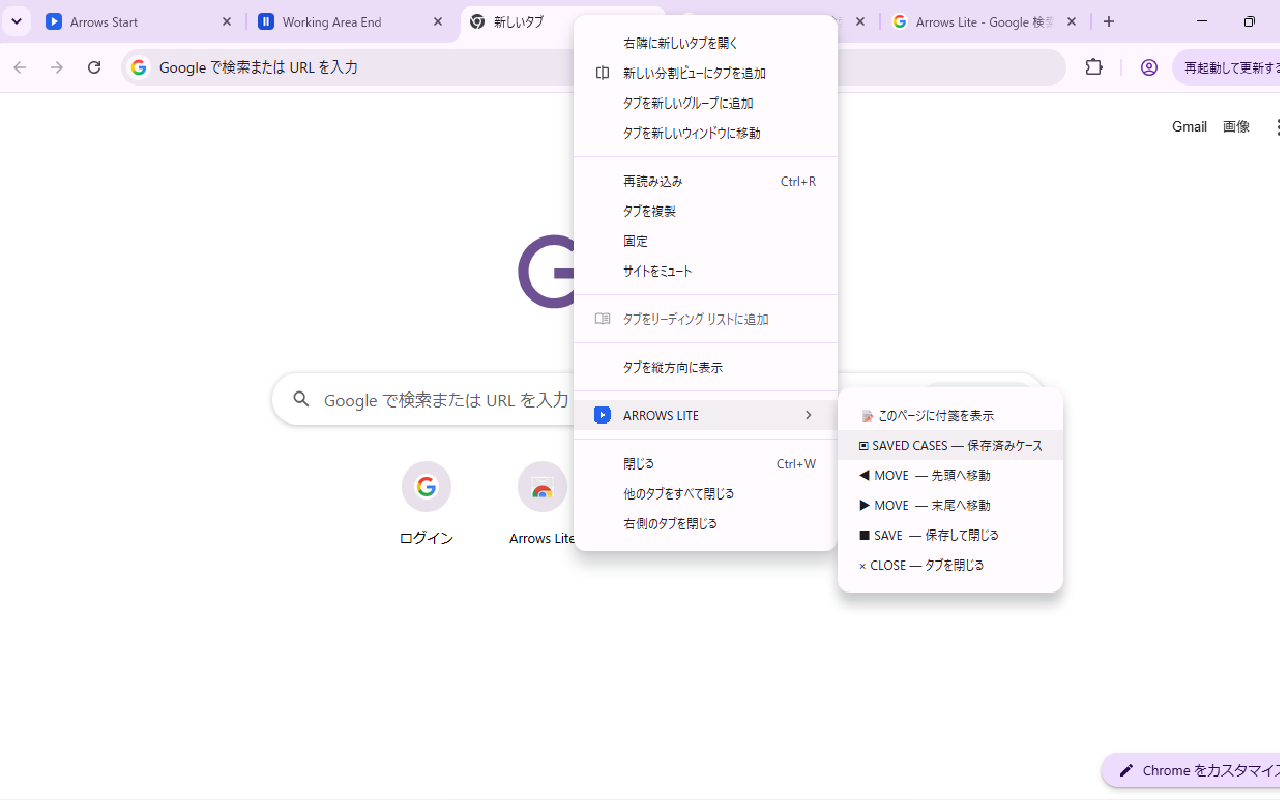
Almost every action lives in one place: right-click a tab → ARROWS LITE. The action always applies to the tab you right-clicked — never to “all tabs” and never to a tab you did not point at.
| Item | What it does | Shown on |
|---|---|---|
| 📝 Show sticky notes on this page | Puts the sticky-note overlay on the page. If notes are already saved for that page the item reads Open saved notes (N) instead. | http / https tabs that are not pinned |
| ▣ SAVED CASES | Opens the Side Panel in the same window. | Any ordinary tab |
| ◀ MOVE — Move to start | Moves the tab to the beginning of the Working Area, just after Arrows Start. | Any ordinary tab |
| ▶ MOVE — Move to end | Moves the tab to the end of the Working Area, just before Working Area End. | Any ordinary tab |
| ■ SAVE — Save and close | Opens the save screen for that tab. | Any ordinary tab |
| ▣ Save the Working Area as a group | Opens the group save screen for the whole Working Area of that window. | Any ordinary tab |
| × CLOSE — Close tab | Closes the tab without saving anything. | Any ordinary tab |
Where the menu does not appear
- On the Arrows Start and Working Area End marker tabs — they are boundaries, not work.
- On Chrome’s own pages (chrome://…), the Web Store and other protected pages, where extensions are not allowed to act.
- The 📝 sticky-note item is limited further: it only appears on http and https pages, so it is absent on
file://tabs and internal pages.
Right-clicking the Arrows Lite toolbar icon gives you one extra entry — ▣ SAVED CASES — which opens the Side Panel of the current window.
5. MOVE — gathering tabs
MOVE is the tidying action. It relocates one tab inside the tab strip, and that is all: nothing is reloaded, nothing is closed, and the page keeps its scroll position, its form input and its login.
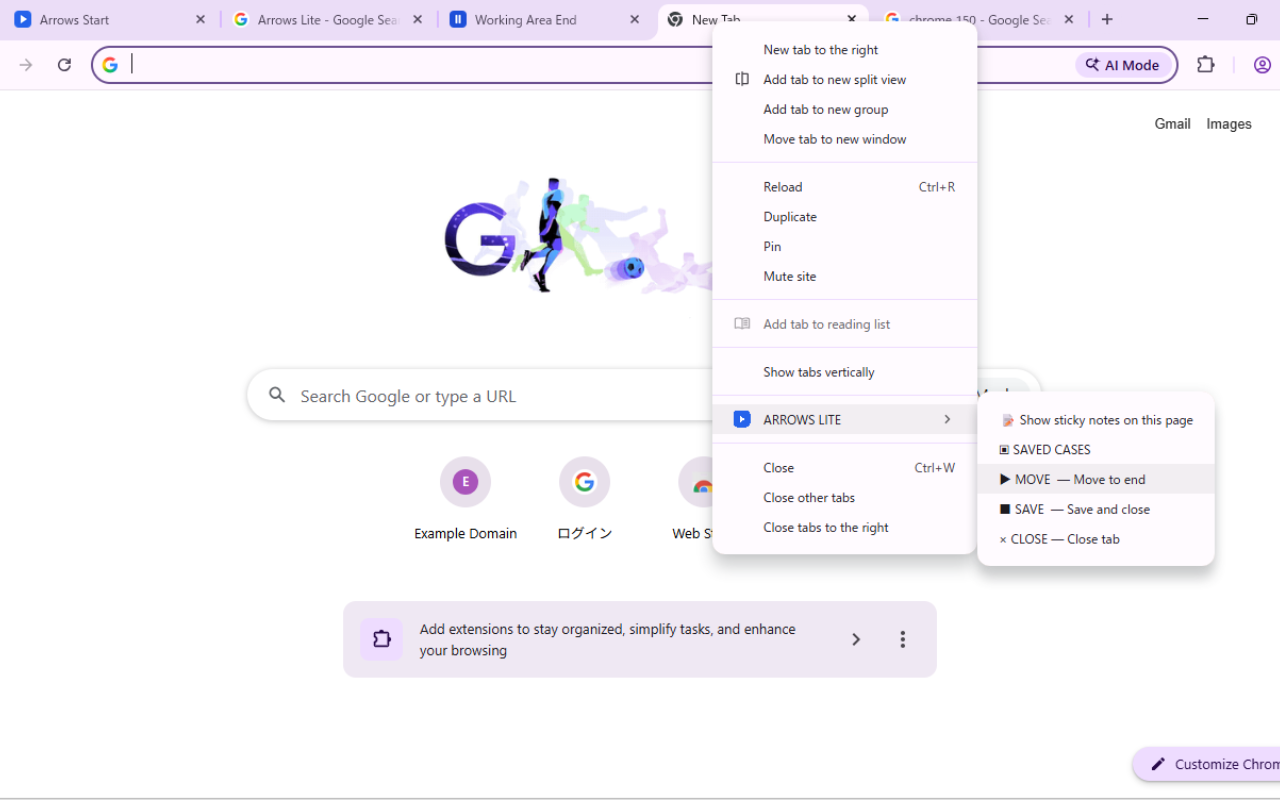
- ▶ MOVE — Move to end The tab is placed at the right edge of the Working Area, immediately before Working Area End. Use it as the default “this belongs to today’s work”.
- ◀ MOVE — Move to start The tab is placed at the left edge, immediately after Arrows Start. Handy for the one page you want to keep in sight.
What MOVE never does
| Situation | Behaviour |
|---|---|
| No Working Area in this window yet | The two markers are created first, then your tab moves into the new area. |
| The tab is pinned | Nothing happens. Pinned tabs are outside the Working Area by design. |
| You right-clicked a marker tab | Nothing happens — markers are not moved by their own menu. |
| The tab is in another window | Not possible: the menu always acts on the tab you right-clicked, inside its own window. |
MOVE does not change the active tab. The tab you were reading stays in front, so gathering ten tabs in a row never throws you out of what you are doing.
6. SAVE — saving one tab
SAVE turns a tab into a saved case: a named entry you can reopen later. Right-click the tab → ■ SAVE — Save and close and the save screen opens in a new tab.
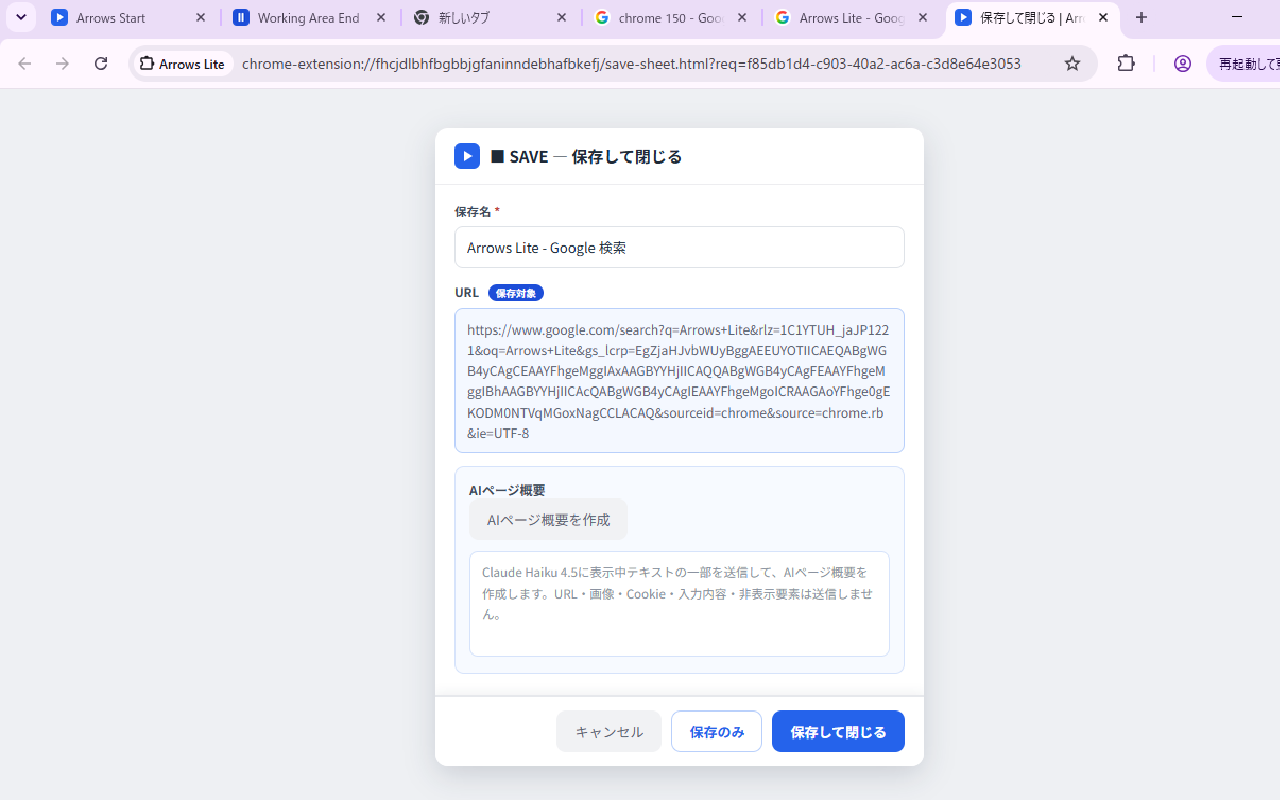
The fields
| Field | Meaning |
|---|---|
| Name | Required. Pre-filled with the page title and fully editable. Write what you were doing (“invoice draft — waiting on the numbers”) rather than what the page is called; this is the line you will read tomorrow. |
| URL | Read-only, shown so you can see exactly what will be stored. The Will be saved tag marks it. |
| AI page overview | Optional. A short summary of the page, either written by the AI when you press the button or typed by you. See section 7. |
The buttons
| Button | Result |
|---|---|
| Save and close | Saves the case and closes the original tab. The usual choice. |
| Save only | Saves the case and leaves the original tab open. Use it when you want a checkpoint without stopping. |
| Close | Closes the save screen and saves nothing. The original tab is untouched. |
When something goes wrong
- “Please enter a name.” — the name is empty. Nothing is saved and no tab is closed.
- “Save request not found (it may have expired).” — the save screen sat open too long or the browser restarted. Close it and run SAVE again; the target tab has not been closed.
- “Saved, but the target tab could not be closed.” — the case is safely stored; only the closing step failed. Close the tab by hand.
- “Save failed (possibly out of storage).” — Chrome refused to write. The target tab is deliberately left open so nothing is lost.
Arrows Lite never closes a tab before the save has actually succeeded. If you see the tab still open after an error, that is the safety rule working as intended.
7. The AI page overview
The AI page overview is one or two sentences describing what a page is about, stored next to the saved case so that a list of twenty saved tabs is still readable weeks later. It is entirely optional — Arrows Lite works fully without ever using it.
How to use it
- 1. Press the button On the save screen, press Create AI page overview. Nothing is sent before that press.
- 2. Sign in once The first time, you are asked to sign in with Google. The sign-in authorises your request to our relay server; the access token is held in memory only and is stored neither on your device nor on the server.
- 3. Read and edit The draft appears in the box and is fully editable. Rewrite it, cut it down or replace it with your own words.
- 4. Save The overview is stored only when you press Save and close or Save only.
What is sent, and what is not
A request contains exactly three things, plus the sign-in token used for authorisation.
| Sent | Detail |
|---|---|
| Page title | The title of the tab being saved, trimmed to 300 characters |
| Visible page text | The visible, non-input text of the main frame, normalised and capped at 6,000 characters |
| Output language | One code from a fixed list (en / zh_CN / ja / es / de / fr / ko) |
The following are never part of the request — in most cases the field does not exist at all, and the rest is dropped while the text is being read.
- The URL of the page, your browsing history and your other tabs
- Cookies, logged-in session data and passwords
- Anything you typed: form values, text boxes, editable areas
- Hidden content —
hidden,aria-hidden,display:none,visibility:hidden, scripts, styles and other frames (iframes) - Images, video, audio and canvas content
- Your sticky notes, your saved cases and your bookmarks
Group overviews
A group (section 9) can have its own overview. That request is even smaller: it sends the group name you typed and the titles of the tabs in the group, plus the output language. The pages themselves are never opened or read, however many tabs the group holds.
Limits and messages
| Message | Meaning |
|---|---|
| Sign in to create the AI page overview. | The sign-in has not been completed yet. No page content has been sent. |
| You have reached the daily limit… / …the monthly limit… | There is a per-person cap per day and per month; the message names the exact figure. It resets on the next day or the next month. |
| Could not create the AI page overview… | A temporary failure. Wait a moment and press the button again, or simply write the overview yourself. |
| An AI page overview cannot be created for this page. | The page had no usable text (for example a pure image or viewer page). Type a name and save normally. |
No automatic or background sending exists anywhere in the extension. If you never press the AI button, Arrows Lite never contacts a server at all.
8. Saved Cases in the Side Panel
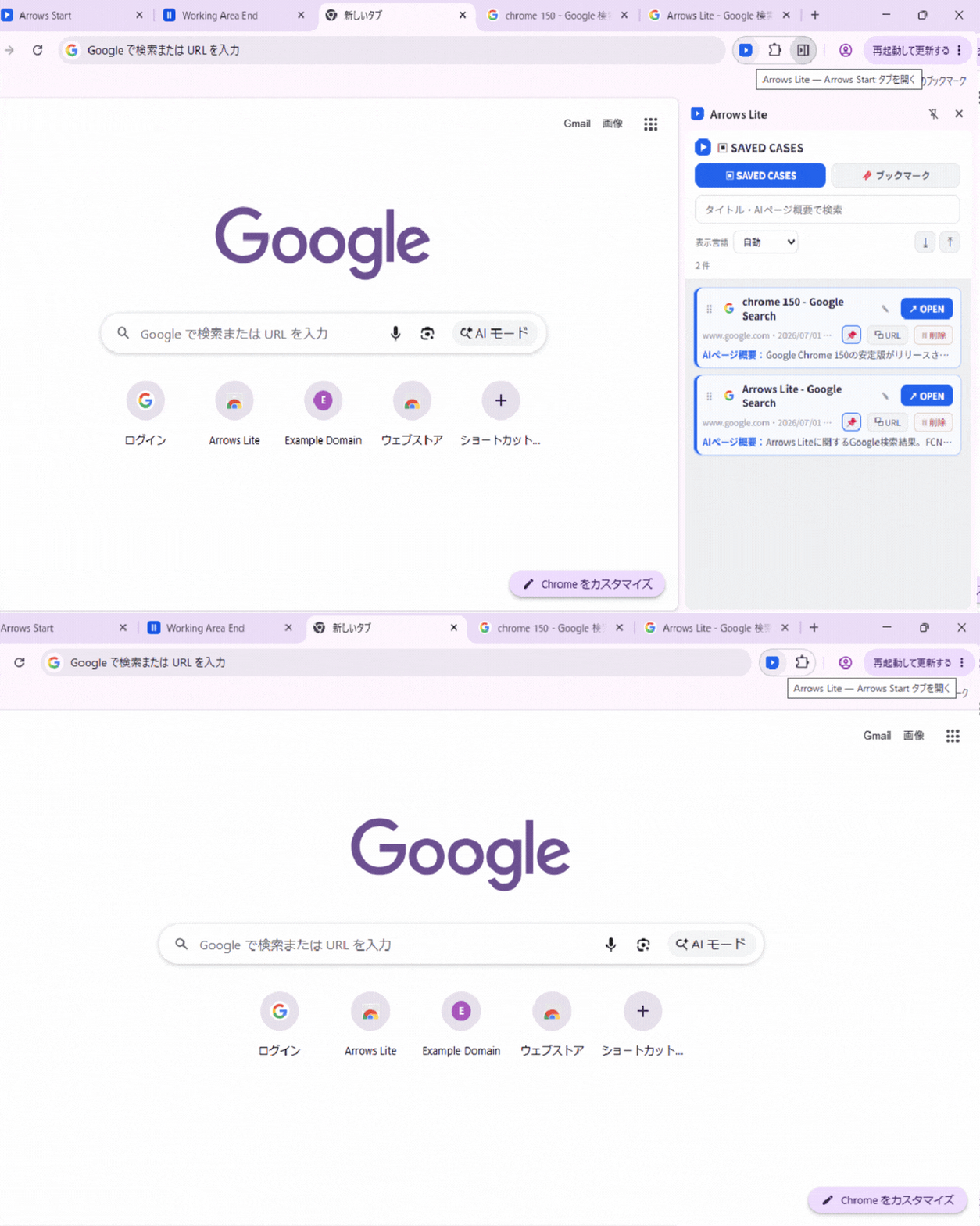
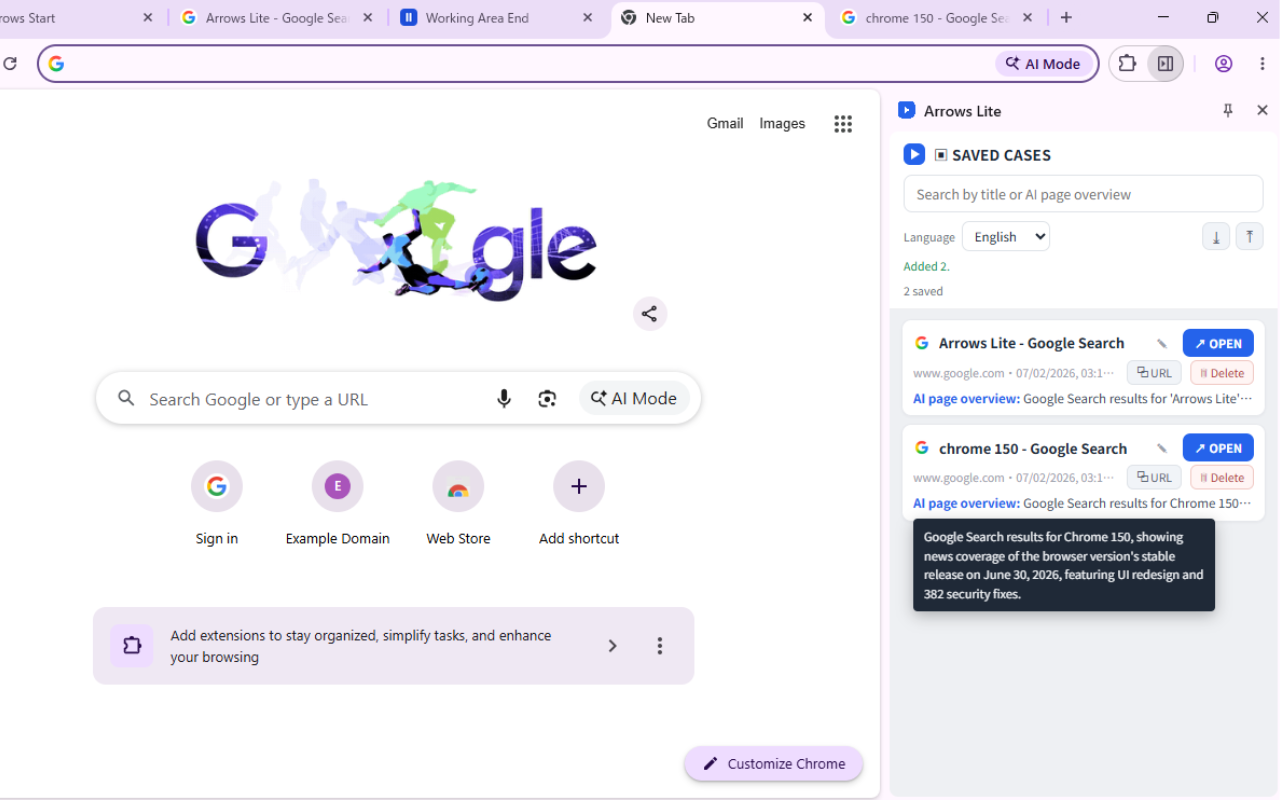
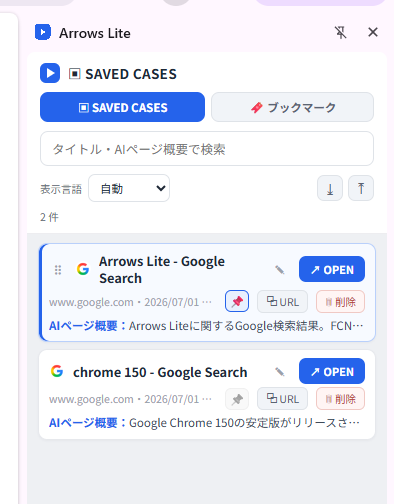
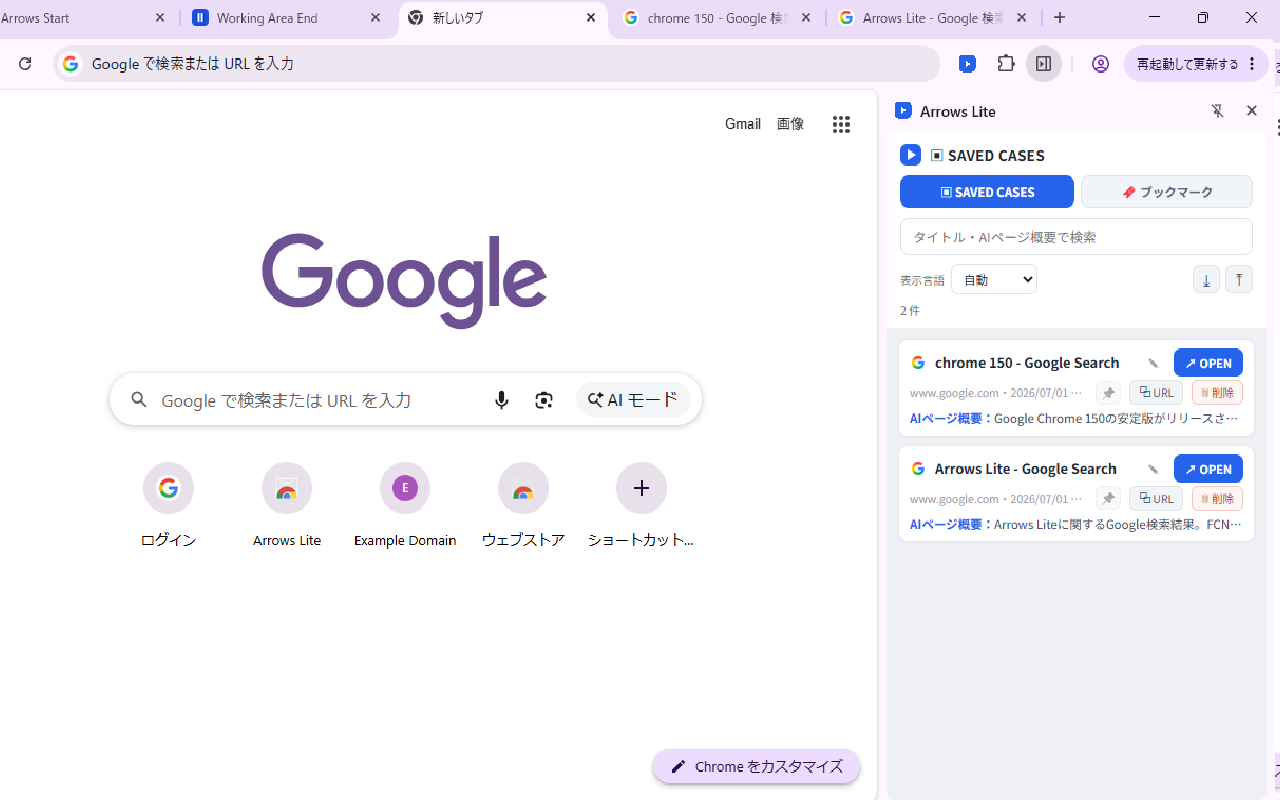
Click the toolbar icon to open the Side Panel; click it again to close it. The panel has three tabs — ▣ SAVED CASES, 📁 GROUPS and 🔖 BOOKMARKS. This section covers the first one.
What a card shows
- The name you gave it, the site it came from and the time it was saved.
- The AI page overview, when the case has one.
- The site icon, drawn by Chrome from its own favicon store — the extension does not fetch anything from the site.
Card actions
| Action | What it does |
|---|---|
| ↗ OPEN | Reopens the page in a new tab. See the restrictions below. |
| ⧉ URL | Copies the address to the clipboard. |
| 🗑 Delete | Removes the case after a confirmation. This cannot be undone. |
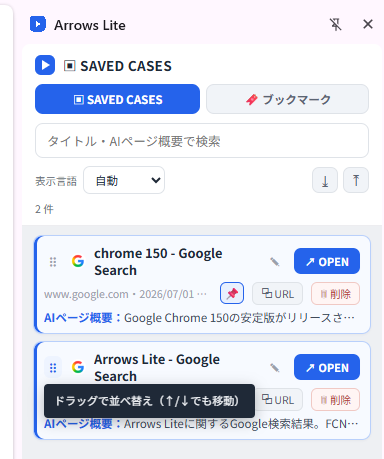
| Pin to top | Keeps the case above the rest of the list. Press again to unpin. |
| Drag handle | Reorders pinned cases by dragging, or with the ↑ / ↓ buttons if you prefer the keyboard. |
| Edit title | Renames a saved case without reopening it. |
Searching
The search box filters by name and AI page overview as you type, and the line underneath shows how many of the total are matching. Searching never changes or deletes anything.
Pages that cannot be reopened
Chrome forbids extensions from opening certain addresses. Arrows Lite therefore checks the address first instead of failing halfway.
| Kind of address | OPEN behaviour |
|---|---|
| http / https | Opens normally in a new tab. |
| The new-tab page | Opens a fresh new tab. |
| Arrows Lite’s own marker pages | Opens the corresponding page. |
chrome://settings, chrome://extensions, other extensions, file://, about:, devtools: | Not opened. Use ⧉ URL and paste it into the address bar — the extension tells you so. |
9. Groups — saving the whole Working Area
Added in 1.1.4. Where SAVE handles one tab, a group takes everything currently in the Working Area, stores it under one name with one AI overview, and reopens the whole set in a single click.
Since 1.1.5, Groups is optional. Turn it on or off with the 📁 Groups switch on the language row of the side panel. While it is off, the tab-menu item and the GROUPS view are hidden, but saved groups are kept. It starts off for new users; if you had already saved a group in 1.1.4, it starts on.
Saving a group
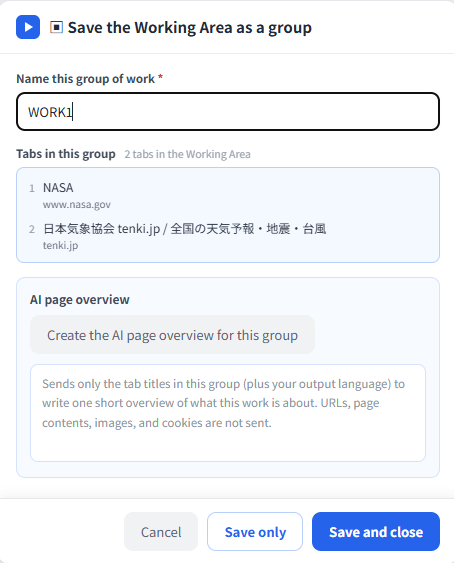
- 1. Open the group screen Right-click any tab → ▣ Save the Working Area as a group.
- 2. Check the list The screen shows how many tabs were found in the Working Area, and how many were skipped because they are pinned or unavailable.
- 3. Name the work Type a name for this group of work — this is what you will recognise tomorrow. Up to 120 characters.
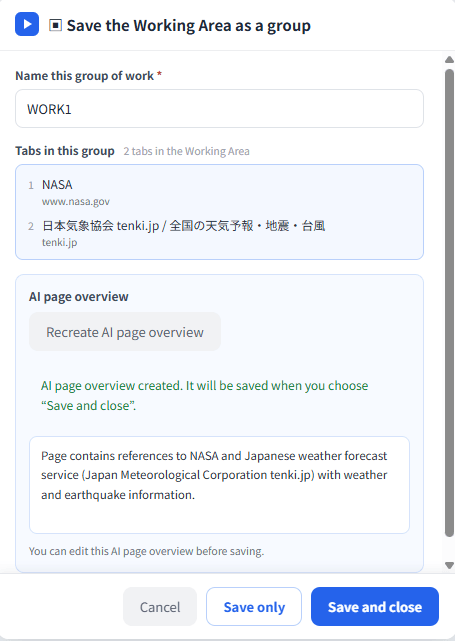
- 4. Optionally add an AI overview Press the AI button to get one short description of what the whole set of work is about. Only the tab titles and the name are sent; the pages are not opened.
- 5. Save The group is stored and its tabs are closed. Any tab that could not be closed stays open and the screen tells you.
The buttons
| Button | Result |
|---|---|
| Save and close | Saves the group and then closes its tabs, leaving an empty Working Area. |
| Save only | Saves the group and closes nothing. Use it to bookmark the state of a session you are still working in. |
| Cancel | Closes the screen and saves nothing. No tab is touched. |
Neither button does anything while the AI overview is still being written, and no tab is ever closed unless the group was stored successfully first.
Reopening a group
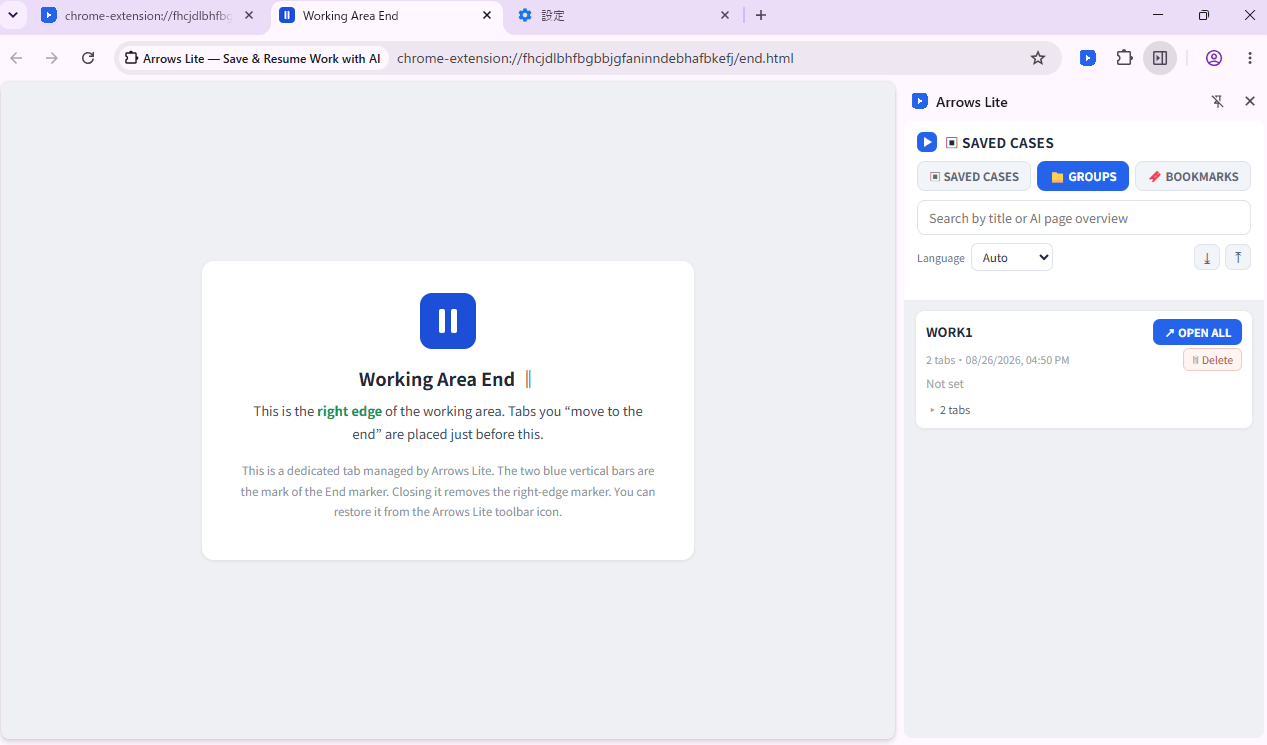
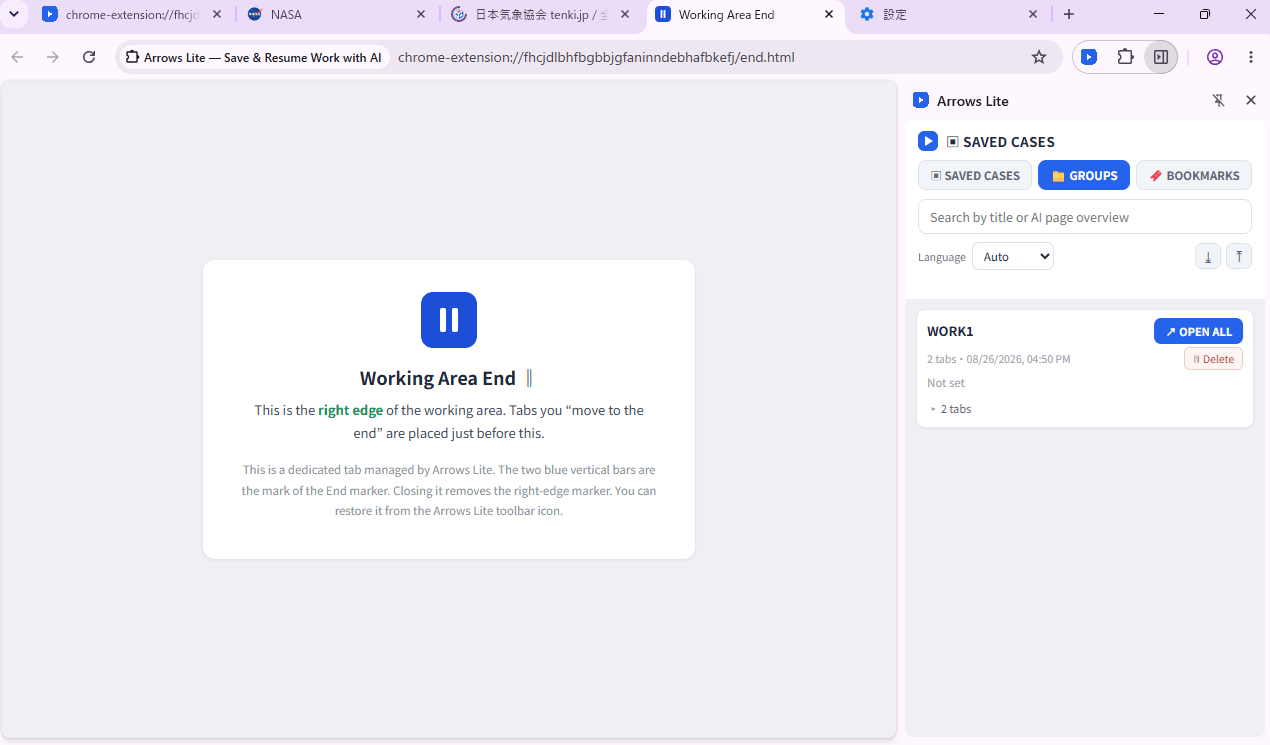
- Open the Side Panel → 📁 GROUPS, find the group and press ↗ OPEN ALL.
- The tabs are reopened into the Working Area, in the order they were saved, so the arrangement you left behind comes back with them.
- If some entries cannot be reopened (protected pages, for example) the panel reports how many were skipped and opens the rest.
Managing groups
| Item | Detail |
|---|---|
| Tabs per group | Up to 50. If the Working Area holds more, the first 50 in screen order are kept. |
| Number of groups | Up to 200. When full, delete one before saving another. |
| Group name | Required, up to 120 characters. |
| Deleting | Deleting a group asks for confirmation and cannot be undone. Tabs that happen to be open are not affected. |
| Empty Working Area | If the area has no tabs, or no area exists in that window, the screen says so and saves nothing. |
Saving a group is the only moment Arrows Lite looks at a list of your open tabs, it happens only when you press the menu item, and it covers only that one window. It reads position, title, address and pinned state — never page content, cookies or history.
10. Bookmarks in the Side Panel
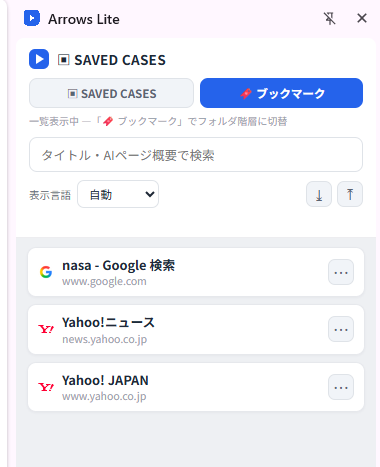
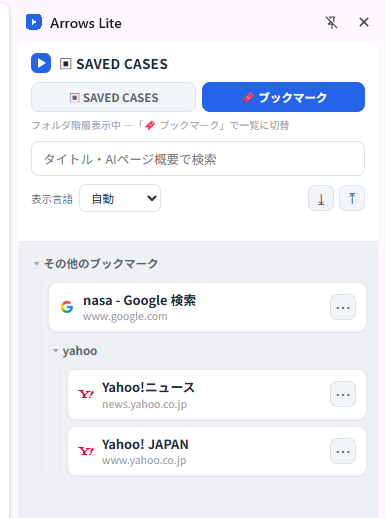
The 🔖 BOOKMARKS tab shows the Chrome bookmarks you already have, and attaches the Arrows Lite actions to them, so an old bookmark can become today’s work without leaving the panel.
Two views
Press 🔖 again to switch between the list view (everything flat, best for scanning) and the folder view (your real folder tree). The hint line under the tabs always tells you which view you are in.
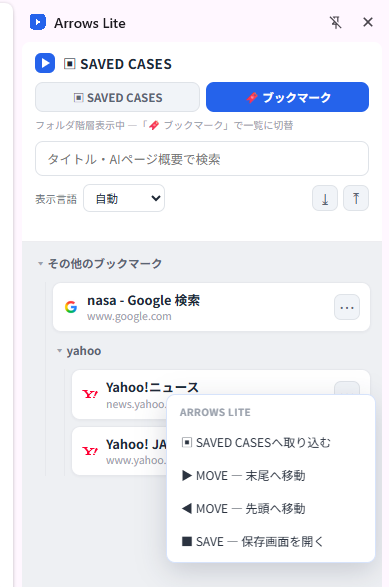
Actions on a bookmark
| Action | What it does |
|---|---|
| ▣ Import to Saved Cases | Copies the bookmark into Saved Cases so it joins the rest of your unfinished work. The bookmark itself stays where it is. |
| ▶ MOVE — Move to end | Opens the page and places it at the end of the Working Area. |
| ◀ MOVE — Move to start | Opens the page and places it at the start of the Working Area. |
| ■ SAVE — Open save screen | Opens the page and goes straight to the save screen, so you can name it properly. |
| 🗑 Delete this bookmark | Deletes it from Chrome after a confirmation. Folder view only, and it cannot be undone. |
| 📁 Move to another folder | Moves the bookmark into a different Chrome folder. Folder view only. |
What is not listed
- Only web page bookmarks appear. A bookmark that is not
httporhttpscannot be opened this way and the panel says so. - Bookmarklets are shown with a Bookmarklet label and are not opened.
- Folders with no name appear as (no name) rather than being hidden.
Deleting or moving a bookmark here changes your real Chrome bookmarks, including on other devices if you have Chrome sync switched on. Importing into Saved Cases, by contrast, only ever copies.
11. Sticky Notes
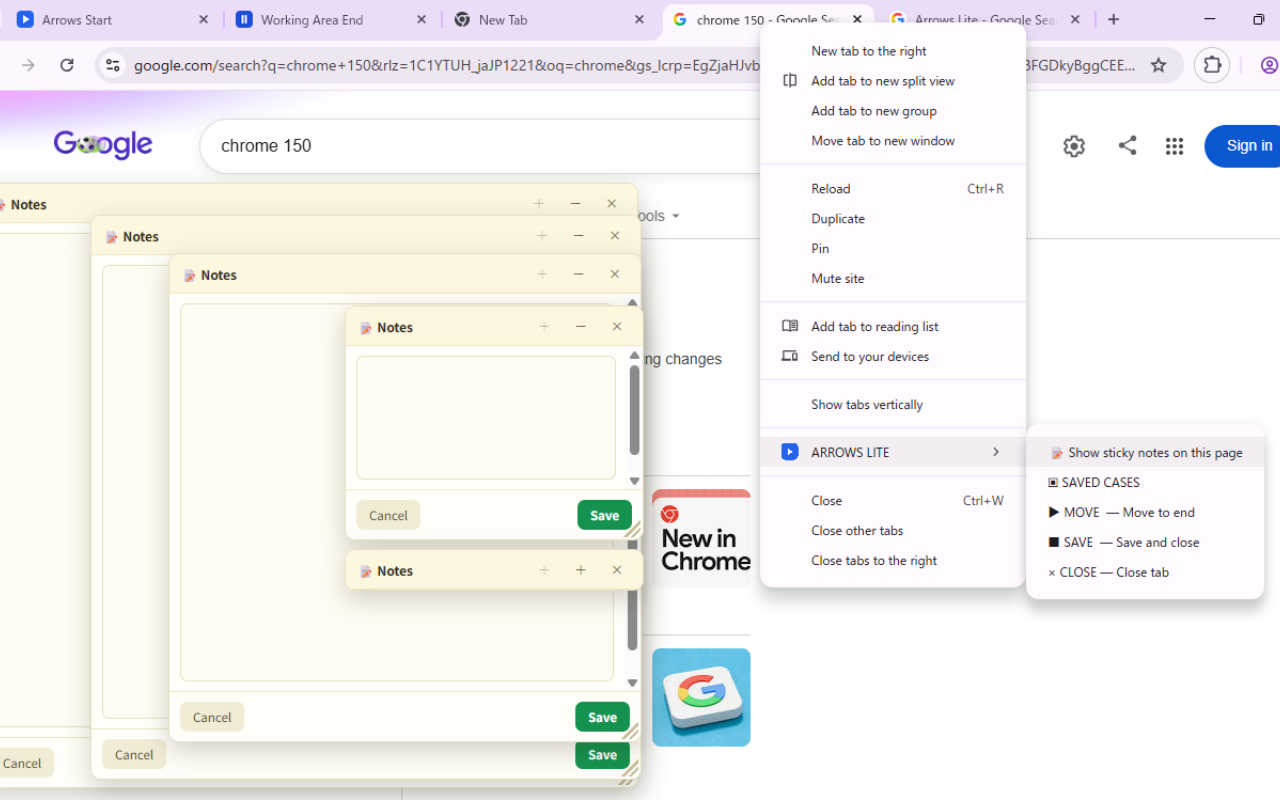
A sticky note is the “where was I?” line, left on the page itself instead of in a separate app. Right-click the tab → 📝 Show sticky notes on this page and the note appears on top of the page.
Writing and managing notes
- Add a note Choose the 📝 menu item. Press + on the note header to add another, up to five on one page.
- Move and resize Drag the header to move a note; drag the bottom-right corner to resize it. The position is remembered when you let go.
- Collapse Collapse a note to a small bar when it is in the way. The collapsed state is remembered too.
- Save Press Save. A note is only stored when you press it — closing an unsaved note discards it, and the button says so.
- Delete Press Delete and confirm. Only that one note is removed.
Finding your notes again
Notes are drawn on the page on demand, so reloading the page clears the overlay — but not your notes. Arrows Lite shows you they are there in two ways:
- A small number badge on the toolbar icon counts the saved notes for the page you are looking at.
- The right-click menu item changes to 📝 Open saved notes (N), and choosing it brings them all back.
Rules and limits
| Item | Value |
|---|---|
| Notes per page | 5 |
| Characters per note | 2,000 (a live counter is shown) |
| Pages that can hold notes | 200 |
| Eligible pages | http and https only, and not on pinned tabs |
| How a page is identified | By address without the query string or the #fragment — so ?ref=… tracking parameters do not create a duplicate page |
The address of the page is not stored. Arrows Lite keeps a one-way SHA-256 hash of it as the key, so the stored data cannot be read back as a browsing history. The note text itself never leaves your device.
12. Display language
Arrows Lite is available in 35 languages. The selector sits at the bottom of the Side Panel.
- Auto follows your browser language and falls back to English for anything else.
- Choosing a language applies immediately — the panel, the save screen, the group screen, the sticky notes and the right-click menu all switch at once.
- The language you pick also becomes the output language requested for new AI page overviews. Overviews written earlier keep the language they were created in.
Product names stay in their original form in every language: Arrows Lite, MOVE, SAVE, OPEN, CLOSE, Saved Cases, Working Area, Arrows Start, Working Area End, Side Panel.
13. Backup — export and import
Saved Cases can be written to a JSON file and read back. Use it before switching computers, before a clean reinstall, or simply as a monthly safety copy.
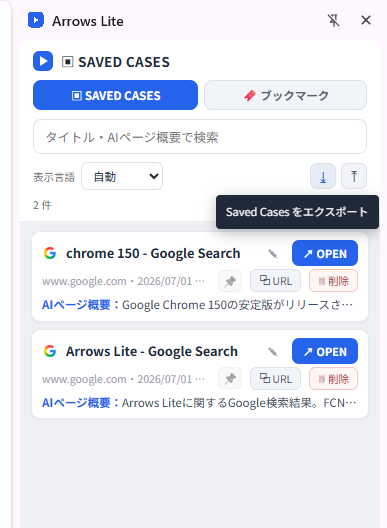
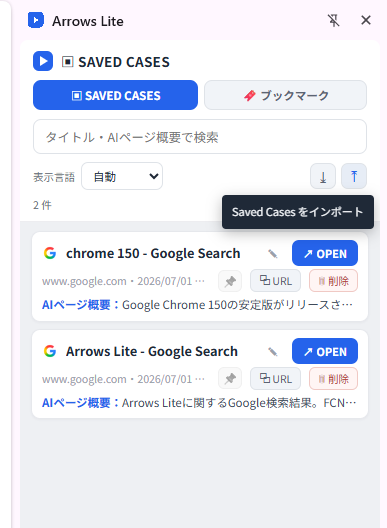
- Export Press ⤓ at the bottom of the Side Panel. A JSON file with all your saved cases is downloaded.
- Import Press ⤒ and choose a file. A review line appears first — New · Duplicate · Invalid — so you see exactly what will happen.
- Confirm Press Add to bring in the new entries. Duplicates and unreadable entries are skipped; nothing you already have is overwritten or deleted.
What the file contains
| Included | Not included |
|---|---|
| Name, address, time saved, AI page overview and its timestamp, the site-icon hint, and whether the case is pinned | Sticky notes, groups, bookmarks, sign-in tokens, server settings and anything else about the extension’s configuration |
Files exported by an older version still import correctly. The export contains your saved cases and nothing else, which also means it is safe to keep alongside your ordinary documents — but it does contain the addresses you saved, so treat it like any personal file.
14. Where your data lives
The short version: everything stays in your browser, and the only thing that ever leaves it is the text you explicitly send by pressing the AI button.
| Data | Where it is kept | Leaves your device? |
|---|---|---|
| Saved cases (name, address, time, AI overview) | Chrome’s local extension storage | No |
| Groups (name, tab titles and addresses, AI overview) | Chrome’s local extension storage | No |
| Sticky notes (text, position, size) | Chrome’s local extension storage, keyed by a one-way hash of the address | No |
| Bookmarks | Chrome’s own bookmark store — Arrows Lite only reads and edits it | Only through your own Chrome sync, if you use it |
| Display language | Chrome’s local extension storage | No |
| AI page overview request | Not stored — held in memory for the length of the request | Yes, when you press the button: title, visible text, output language |
What Arrows Lite does not have
- No account, no profile, no advertising identifier.
- No permission over all websites, no reading of your browsing history, no background tracking of the pages you visit.
- No sending of page content in the background: transmission happens only on a button press, and only for the tab or group you chose.
Removing everything
Uninstalling Arrows Lite removes its local storage with it — saved cases, groups, sticky notes and settings all go. Export first if you want to keep them. Your Chrome bookmarks are Chrome’s and are not affected.
15. Limits at a glance
| Item | Limit |
|---|---|
| Sticky notes per page | 5 |
| Characters per sticky note | 2,000 |
| Pages holding sticky notes | 200 |
| Tabs in one saved group | 50 |
| Saved groups | 200 |
| Group name | 120 characters |
| Saved case name | Required; no practical length limit |
| Page title sent for an AI overview | 300 characters |
| Page text sent for an AI overview | 6,000 characters |
| AI page overviews | A daily and a monthly cap per person; the message names the figure when you reach it |
| Working Areas | One per window |
| Chrome version | 150 or later |
16. Troubleshooting
The ARROWS LITE menu is missing when I right-click a tab
- You may have right-clicked a marker tab or a Chrome page (chrome://…), where extensions cannot act.
- On Chrome older than 150 the features stay switched off on purpose. Update Chrome.
- Otherwise, switch the extension off and on again in
chrome://extensions— this rebuilds the menu.
The Side Panel does not open
- Make sure the icon is pinned and that you are clicking Arrows Lite rather than the puzzle-piece button.
- The panel belongs to the window you clicked in. If you have several windows, check that one.
My sticky notes disappeared after reloading the page
- They are still stored — the overlay is drawn only on request. Look for the number badge on the toolbar icon and choose 📝 Open saved notes (N).
- A note only exists once you press Save; a note that was closed while still being typed is not kept.
- Notes are tied to the page address without its query string. A page reached through a genuinely different path is a different page.
OPEN says the page cannot be reopened
That address is one Chrome does not allow an extension to open — settings pages, other extensions, file:// and similar. Press ⧉ URL and paste it into the address bar.
MOVE does nothing
- The tab is pinned — pinned tabs stay outside the Working Area by design.
- You right-clicked a marker tab rather than an ordinary one.
The AI page overview will not appear
- Complete the Google sign-in when it is offered; without it nothing is sent and no overview is made.
- If you have hit the daily or monthly cap, the message says so and it resets on its own.
- Some pages carry no readable text. Write the overview yourself — the box is always editable.
A saved case vanished, or I deleted one by mistake
Deleting is immediate and cannot be undone, which is why export exists. If you have a JSON backup, import it and the missing entries come back as new ones.
Ready to put it to work?
Install in about a minute, then save the very tab you have open right now.
Add to Chrome