A step-by-step guide to saving your work in progress and resuming it the next day. Arrows Lite works entirely in your browser — no account, and no page content is collected.
1. Install & pin the toolbar icon
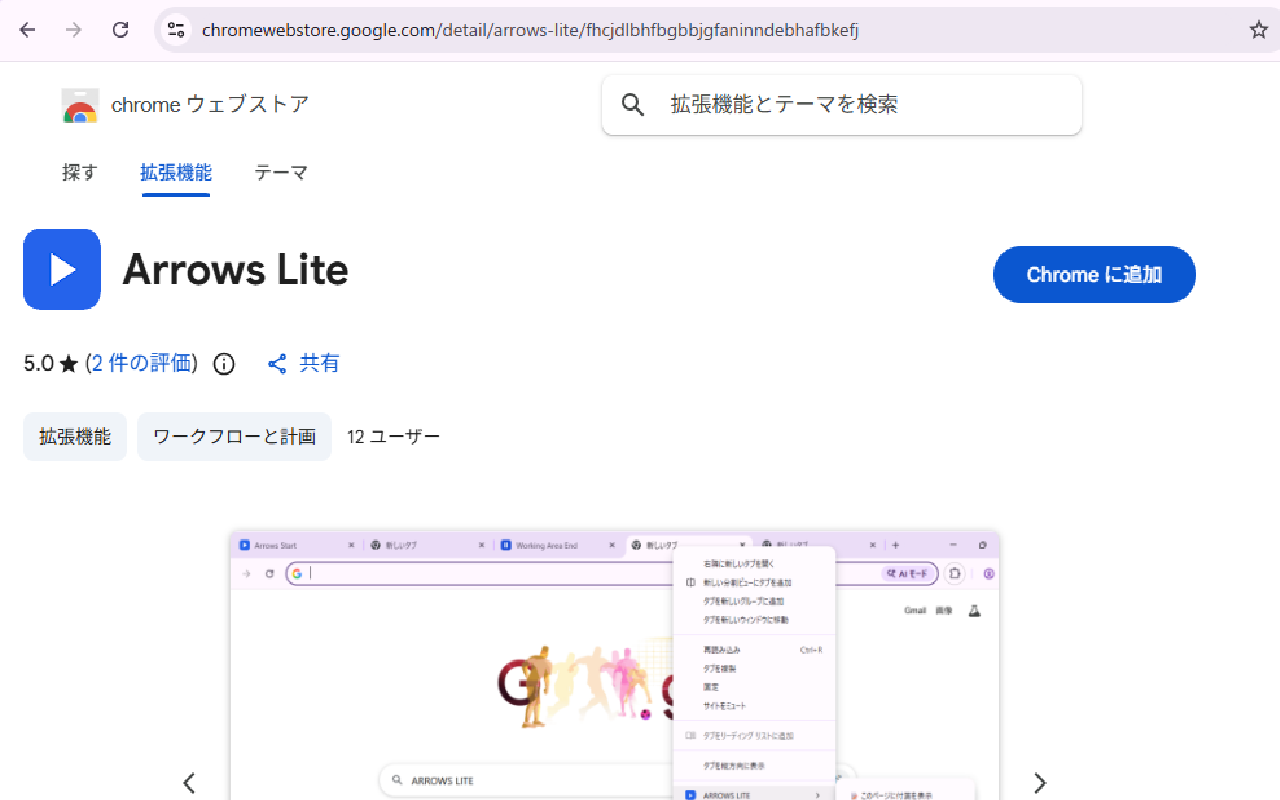
- Add to Chrome Open the Chrome Web Store page and click Add to Chrome. It is free and needs no account.
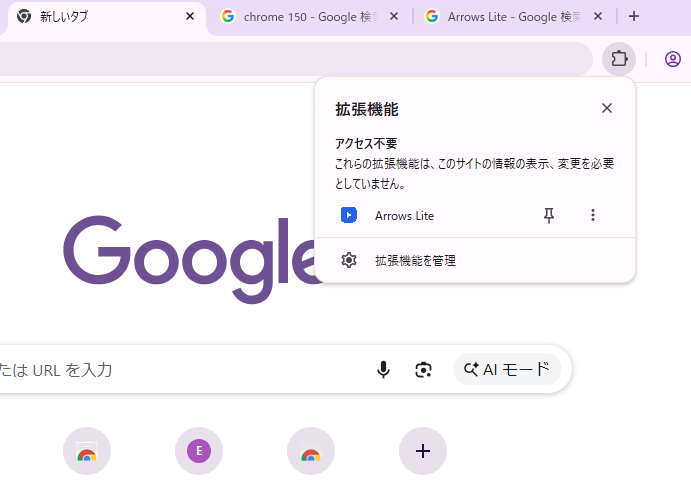
- Pin the icon Click the puzzle-piece (Extensions) button in the toolbar and pin Arrows Lite so its icon stays visible.
The toolbar icon opens and closes the Saved Cases Side Panel — see the last section.
2. The Working Area
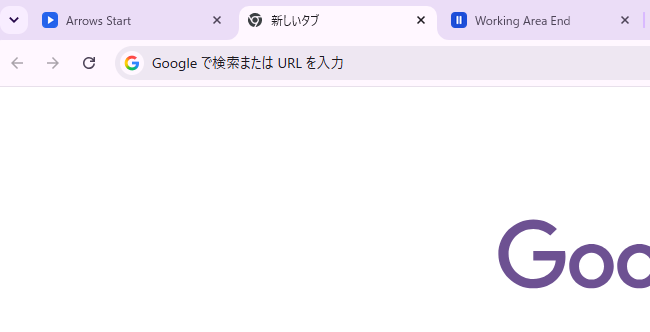
- Two markers Arrows Lite keeps your in-progress tabs between two marker tabs: Arrows Start on the left and Working Area End on the right.
- Created automatically You never create them by hand. The first time you MOVE a tab (or open the panel), the markers appear at the left of your tab strip.
Everything between Arrows Start and Working Area End is “work in progress.” Tabs outside it are left untouched.
3. MOVE — gather tabs into the Working Area
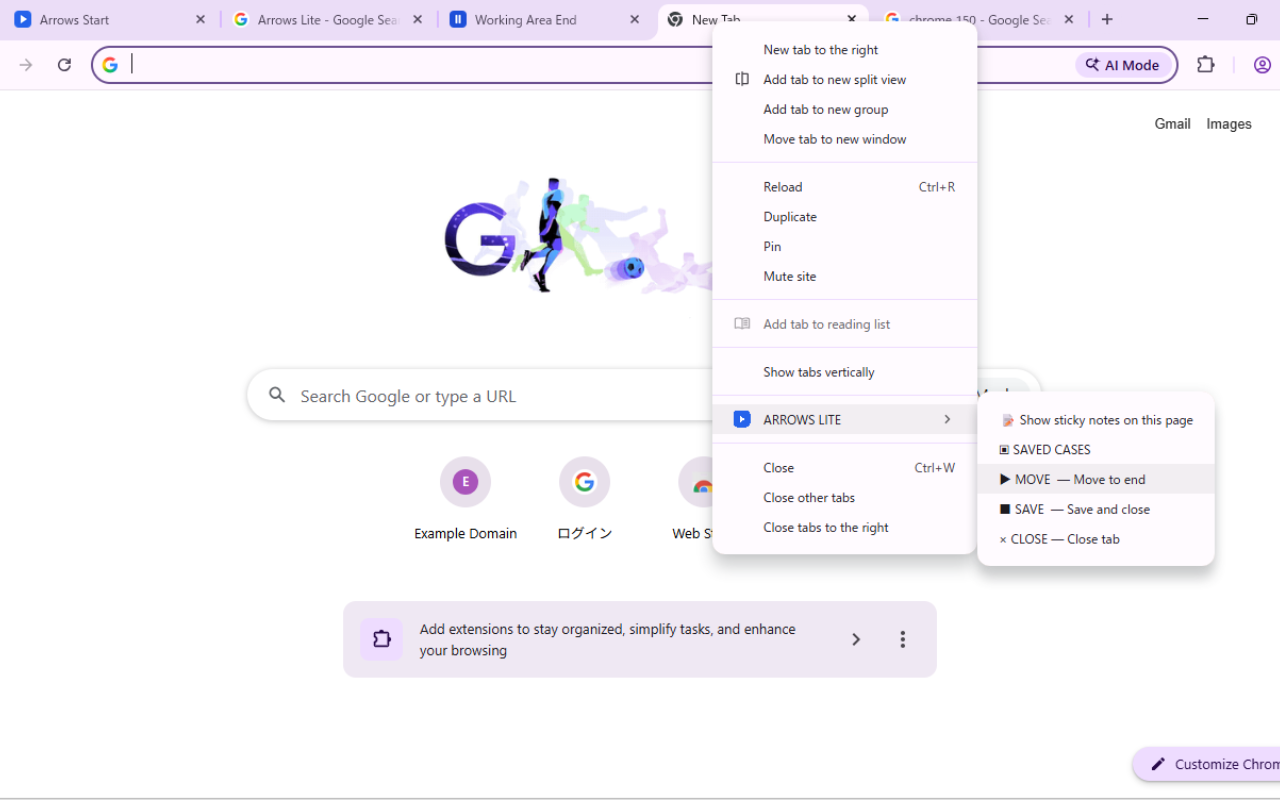
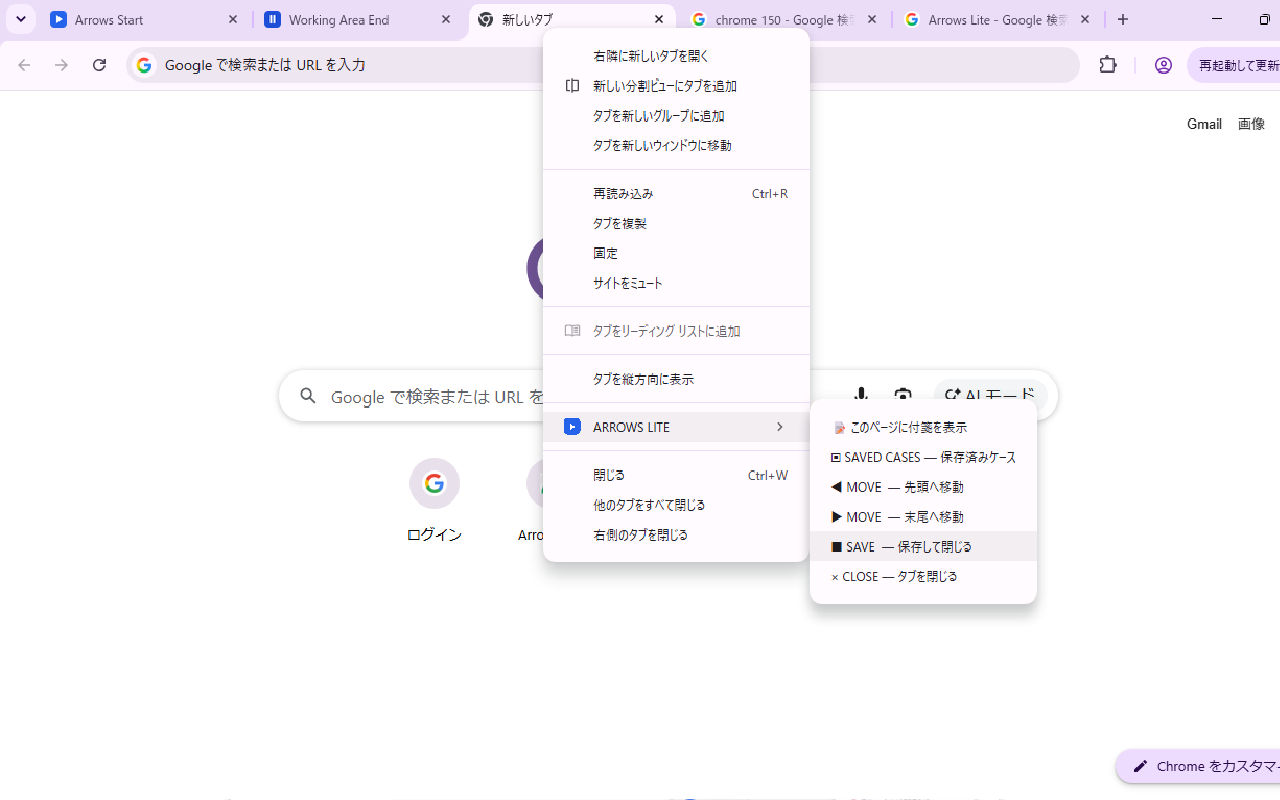
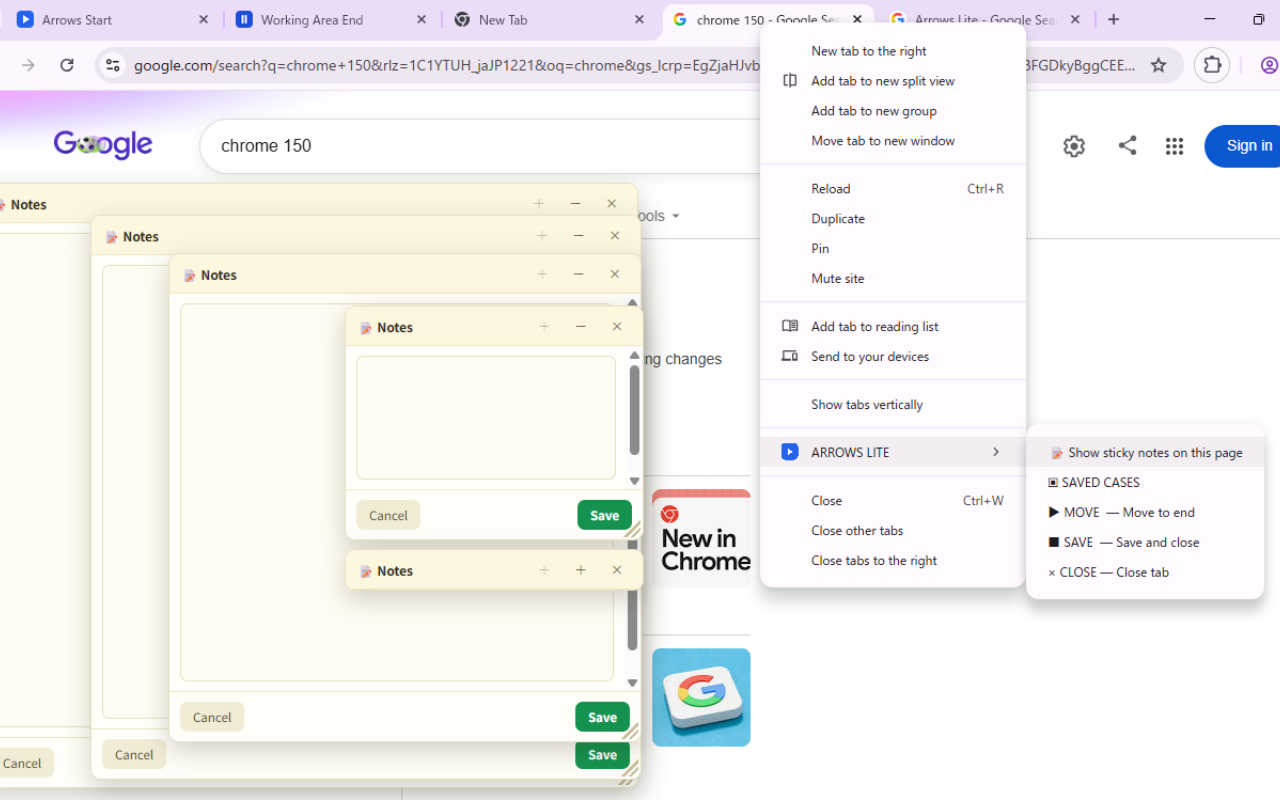
- Right-click a tab Right-click any tab and choose ARROWS LITE.
- ▶ MOVE — to end / ◀ MOVE — to start Send the tab to the tail (just before Working Area End) or the head (just after Arrows Start) of your Working Area.
If the Working Area does not exist yet, MOVE creates the markers first, then moves the tab.
4. SAVE — save your work with an AI summary
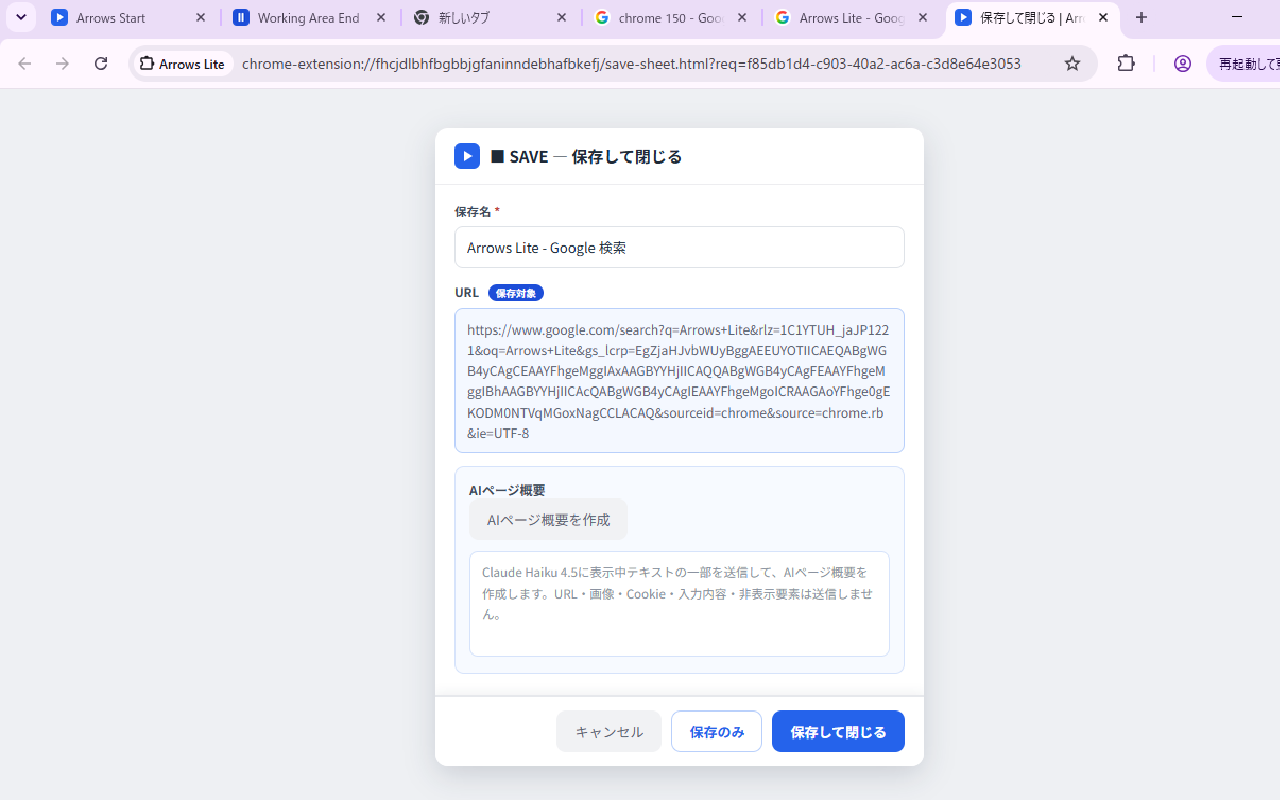
- Right-click → SAVE Right-click the tab → ARROWS LITE → ■ SAVE — save and close. A save sheet opens.
- AI page summary Arrows Lite asks the AI to sum up how far you got in 1–2 sentences. You can edit the summary before saving.
- Save and close, or Save only “Save and close” stores the case and closes the tab. “Save only” keeps the tab open and returns focus to it.
Only the tab you save is processed, with your consent — the page title and visible text, never the URL, cookies, or passwords.
5. Saved Cases — resume the next day
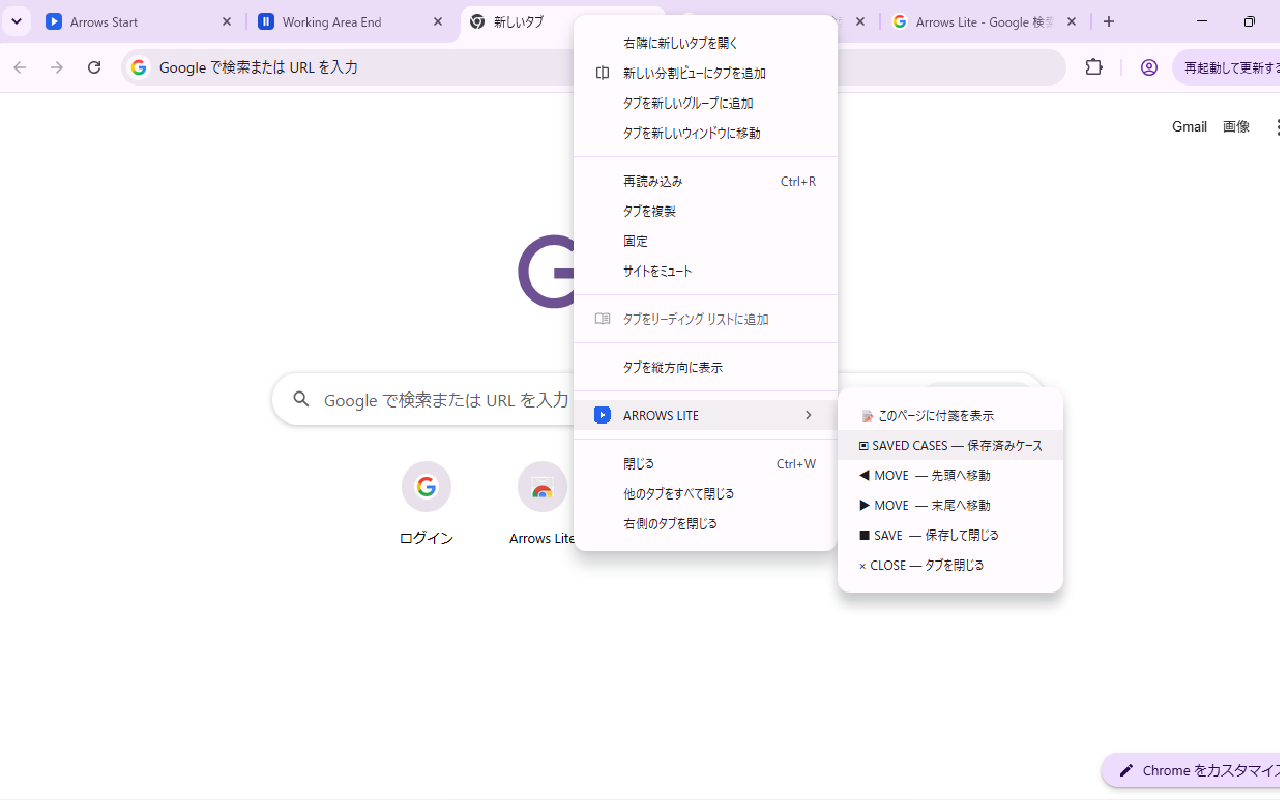
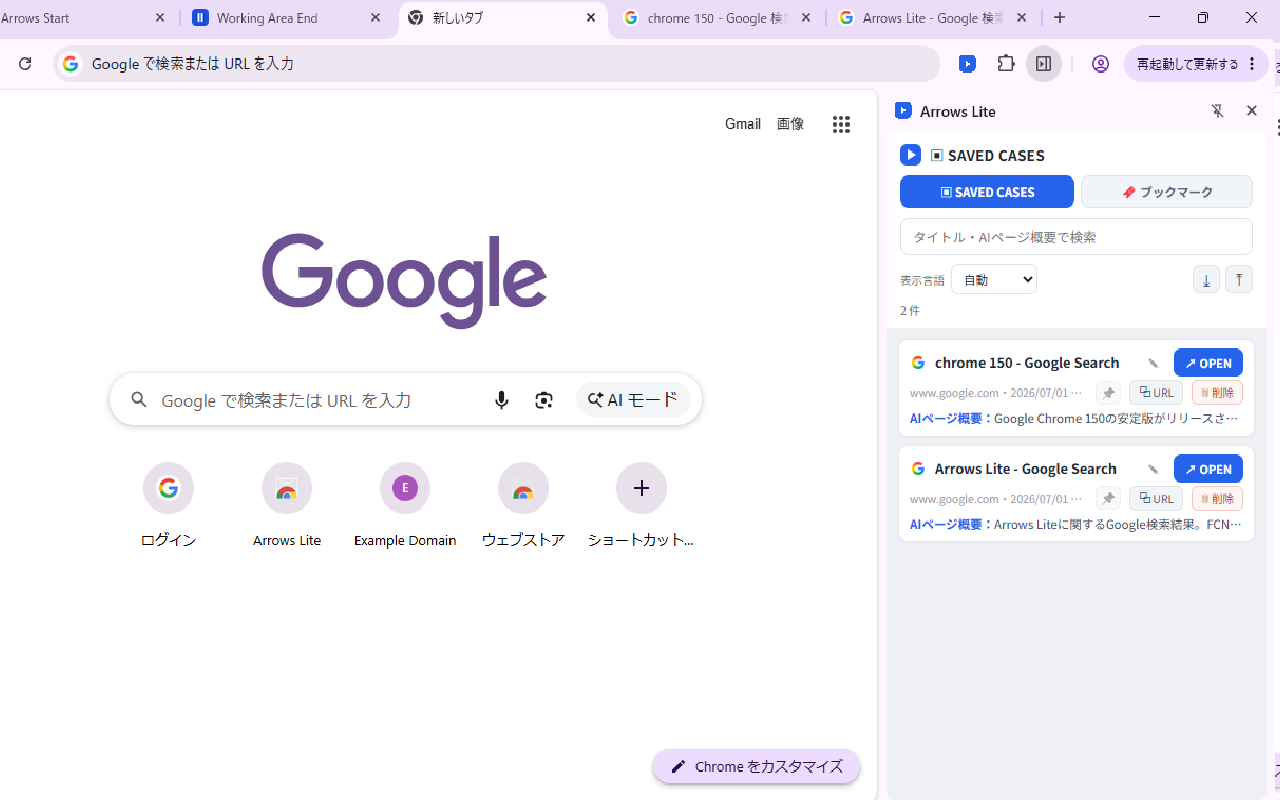
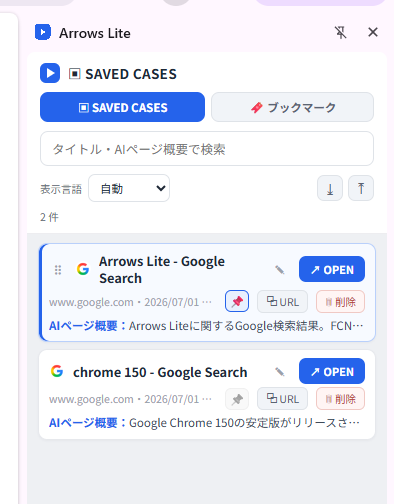
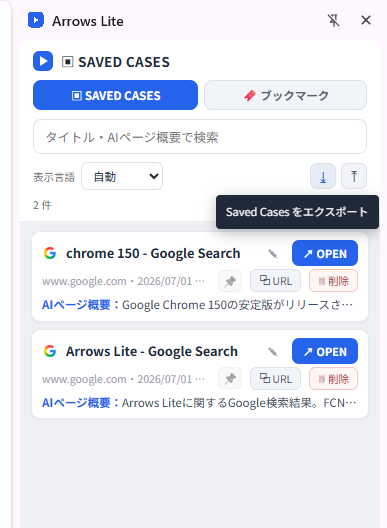
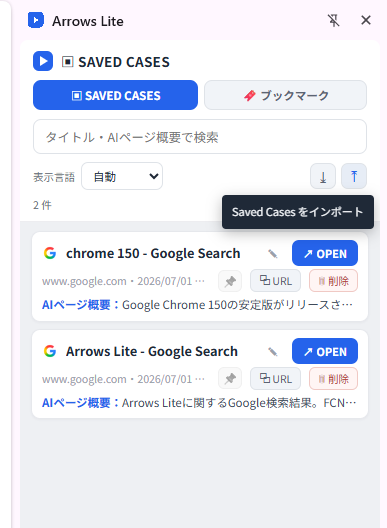
- Open the panel Click the Arrows Lite toolbar icon (or right-click a tab → ARROWS LITE → SAVED CASES) to open the Side Panel.
- OPEN Find your case and click OPEN. Yesterday’s page reopens so you can continue right where you left off.
- Search The search box matches both the title and the AI summary — so a vague memory like “that quote” is enough to find it.
6. Pin & reorder
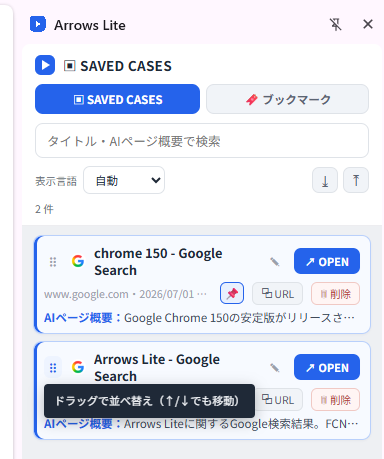
- 📌 Pin Pin important cases so they stay at the top of the list.
- Drag to reorder Grab the ⠿ handle on a pinned card and drag it up or down to set the order (the ↑ / ↓ keys work too).
7. Bookmarks in the Side Panel
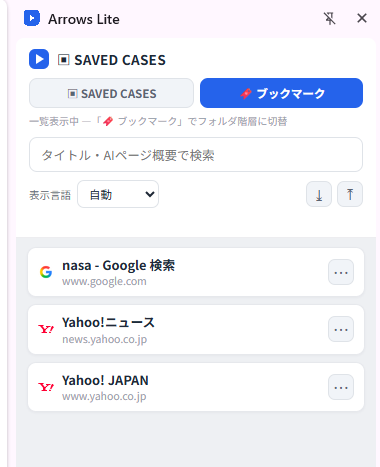
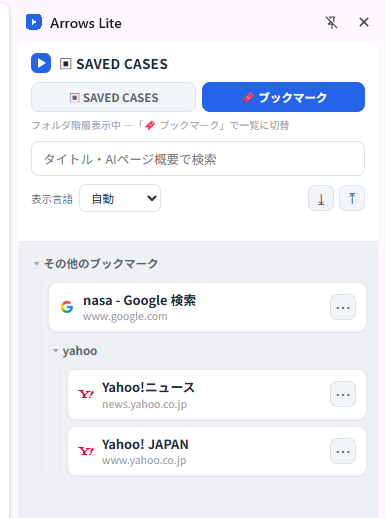
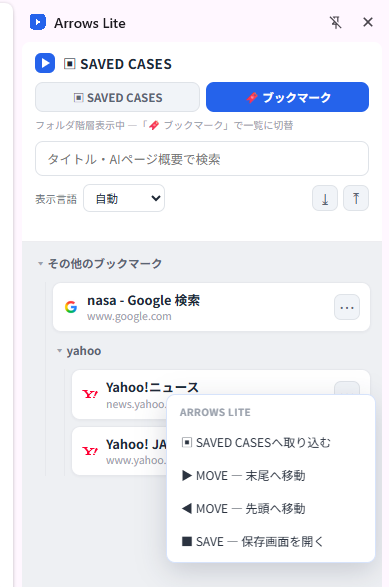
- Bookmarks tab Switch to the “Bookmarks” tab in the Side Panel to list and search your existing bookmarks (web pages only).
- List ⇄ Hierarchy Toggle between a flat, searchable list and the folder hierarchy.
- Right-click → ARROWS LITE Right-click a bookmark (or use the ⋯ button) to add it to Saved Cases, MOVE it into the Working Area, or open the SAVE sheet.
Arrows Lite only reads bookmarks. Editing and reordering are done in Chrome’s own bookmark manager.
8. Sticky Notes — leave a note on the page
- Add a note Right-click the page → ARROWS LITE → Show sticky note on this page, then write what to do next.
- Up to 5 per page Leave up to five notes per page. On your next visit, the latest note opens automatically.
9. Open & close the panel from the toolbar
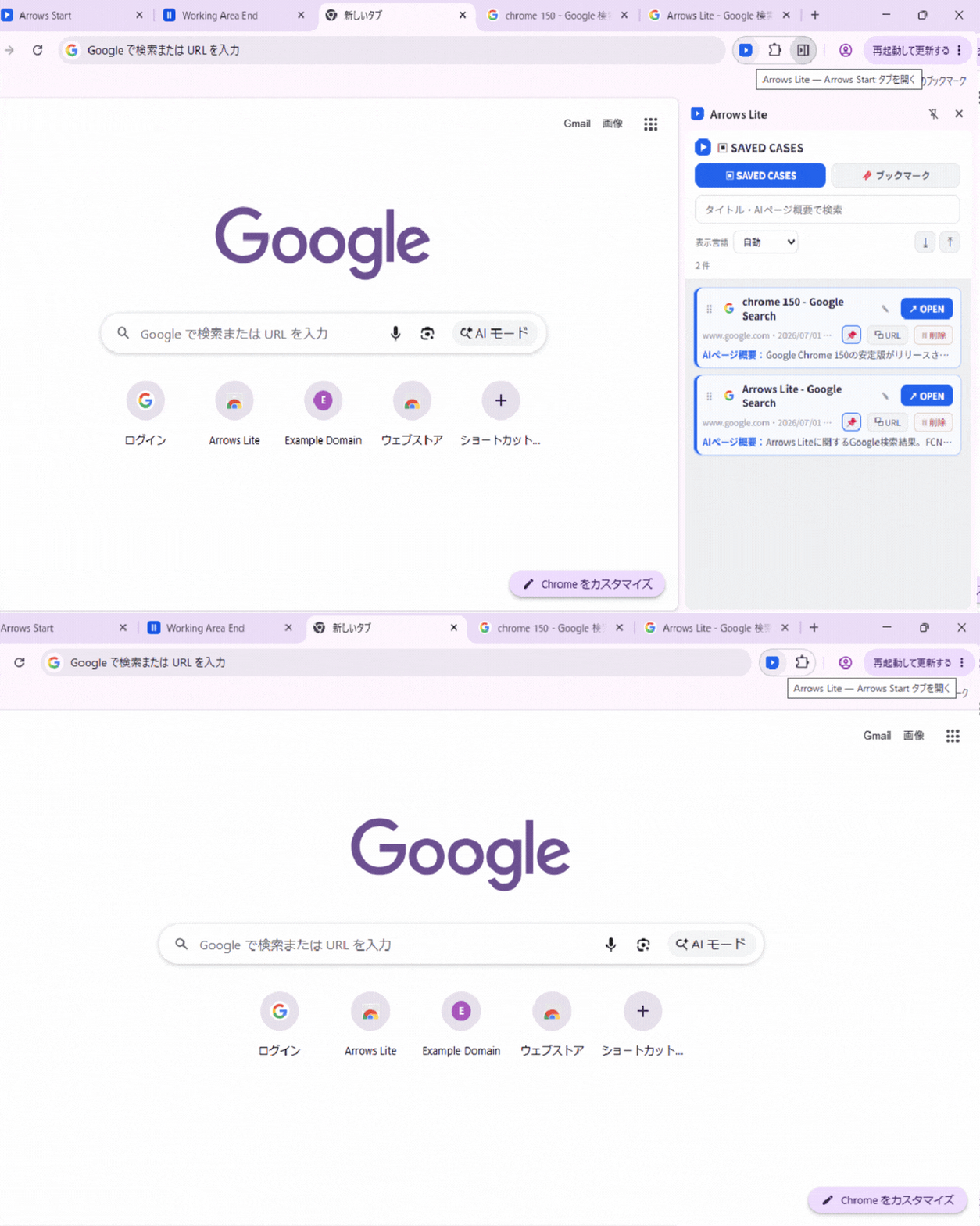
- Click to toggle Clicking the Arrows Lite toolbar icon opens and closes the Saved Cases Side Panel.
- Working Area prepared quietly Opening the panel makes sure the Working Area (Arrows Start / Working Area End) exists — without moving your active tab.
10. Backup & privacy
- Export / Import Export your Saved Cases to a JSON file for backup, and import it back at any time.
- Stored locally Everything is kept in your browser, on your device — lightweight data only (title, URL, AI summary, time). Nothing is sent to us or third parties.